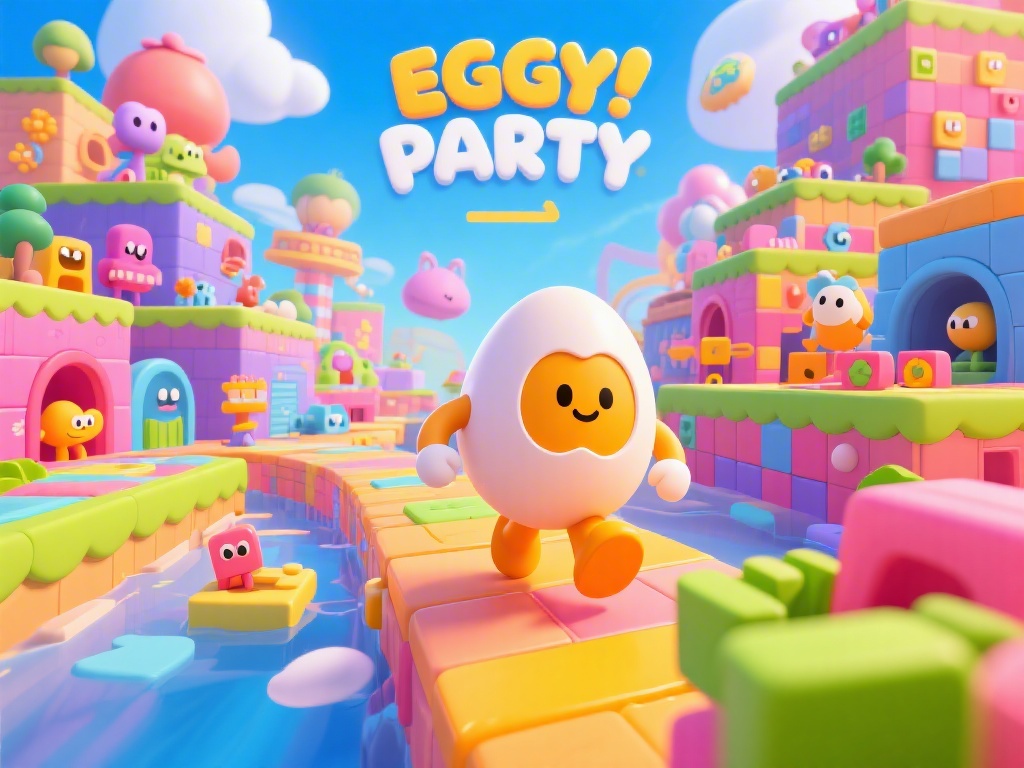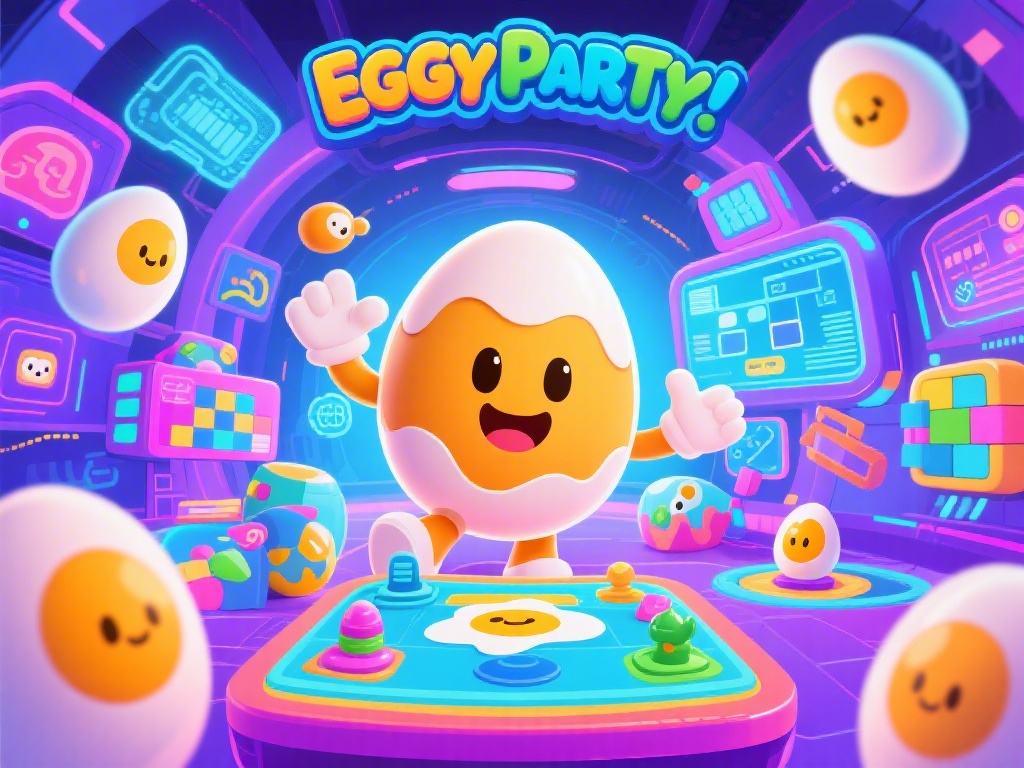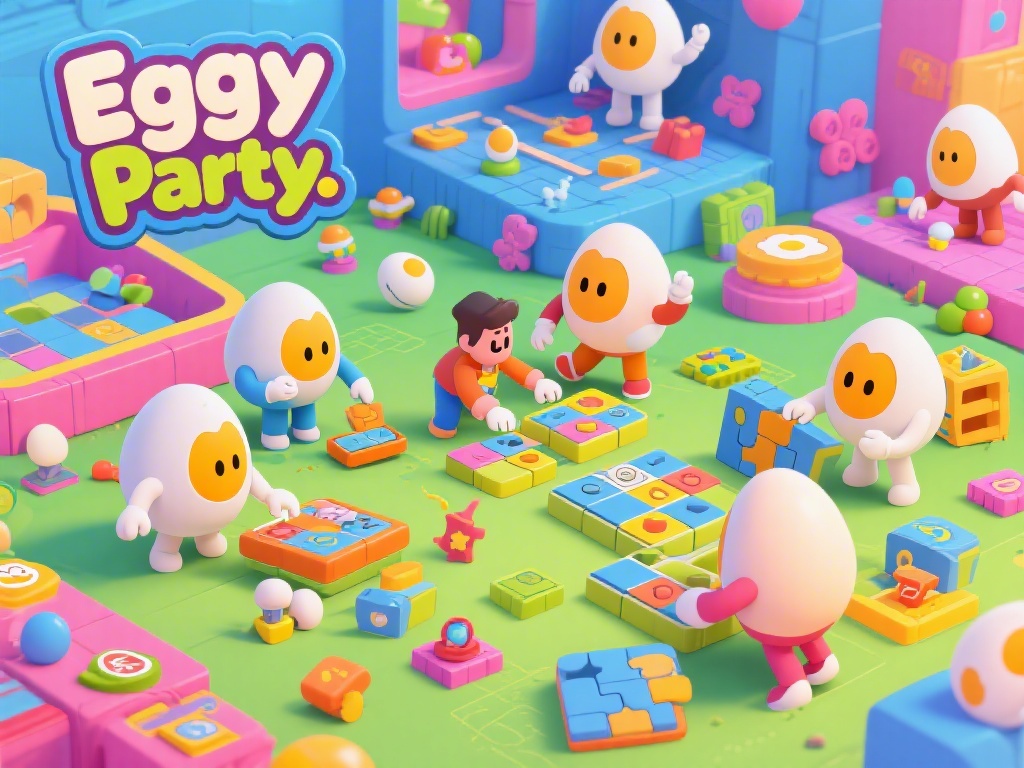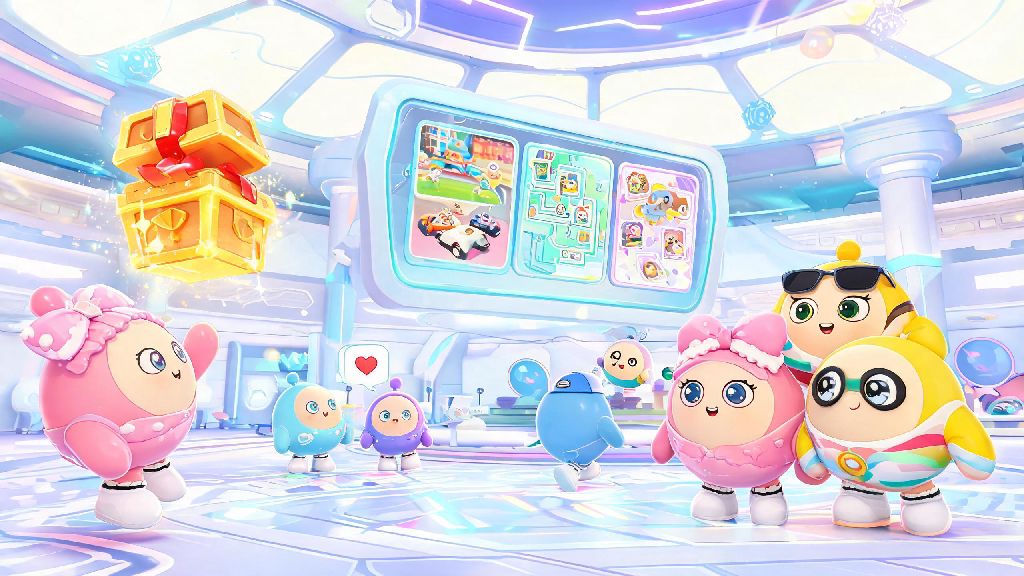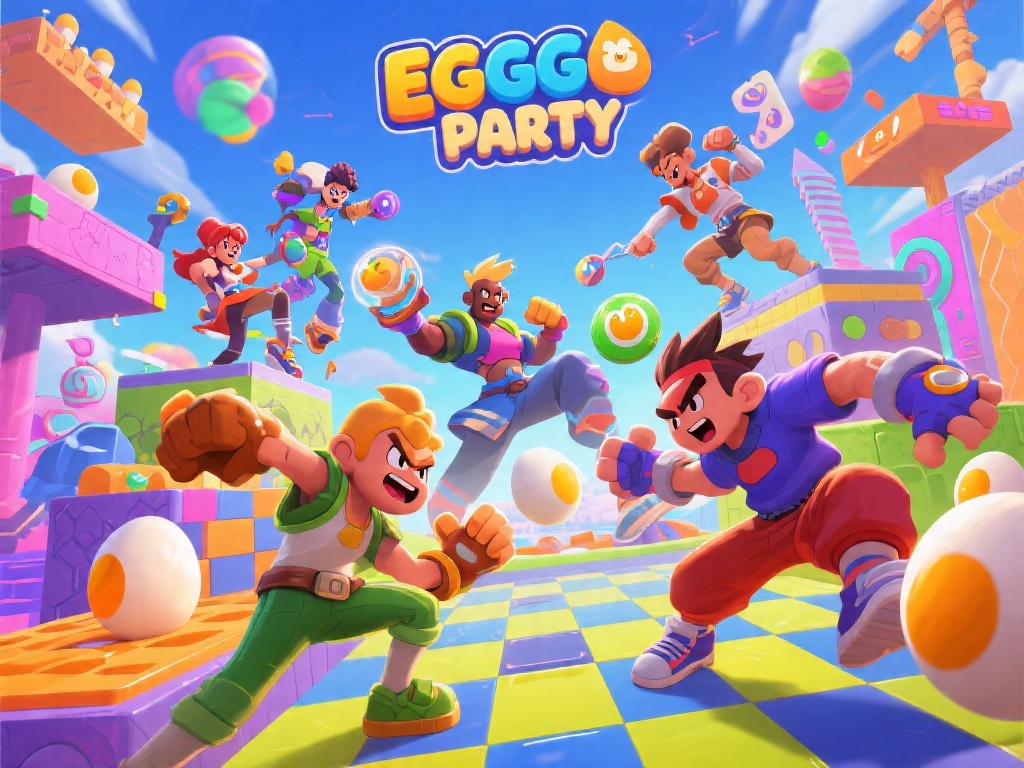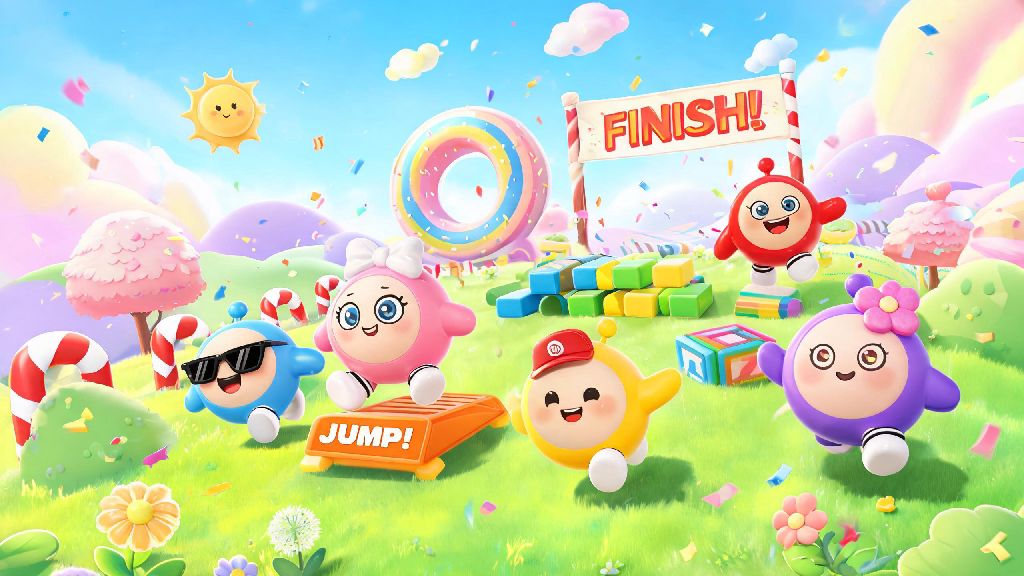
If you’ve walked past your kid’s phone recently and seen bright, bouncy egg-shaped characters racing through wacky obstacle courses, they’re probably playing Eggy Party. The casual multiplayer game has blown up with kids under 12 thanks to its silly aesthetic, short match times, and easy-to-learn controls, but many parents don’t know what to expect when their kid asks to download it. I’ve tested every setting in the game myself after getting dozens of questions from parents in my local parent group, so all the tips here are tested and easy to implement. This Eggy Party parent guide breaks down everything you need to know to set safe boundaries without ruining the fun for your little one.
Key Safety Features Covered in This Eggy Party Parent Guide
First, let’s start with the basics to help you decide if Eggy Party is a good fit for your kid. The official ESRB rating for Eggy Party is E10+, which means it’s designed for players 10 years and older. The rating is assigned for mild cartoon violence (characters get squished or knocked off courses, no graphic content), mild suggestive themes in some cosmetic skins, and optional in-game purchases. the E10+ rating means it’s recommended for kids 10 and older, but you can adjust settings to make it safe for kids as young as 7 if you monitor play regularly.
We’ll walk through every adjustable safety setting in the game, plus share real-world tips from other parents to avoid common headaches like surprise charges or excessive screen time. You won’t need any technical skills to set these up, most take less than two minutes to enable. We’ll also cover how to talk to your kid about safe online play so they understand why the boundaries are in place, instead of seeing them as arbitrary rules.
How to Block Unauthorized In-Game Purchases in Eggy Party
The most common complaint I hear from parents about Eggy Party is surprise charges on their credit card for in-game items. Eggy Party sells Egg Coins, the in-game currency, that can be used to buy cosmetic skins, battle passes, and custom map access. Kids often don’t realize that tapping “buy” uses real money connected to the app store account, especially if one-click purchasing is enabled. you don’t have to turn off all purchases entirely if you want to let your kid earn occasional rewards – you just have to set up the right controls.
Follow these simple steps to enable purchase protection in less than a minute:
Once these settings are enabled, any purchase will require your PIN to go through, so you won’t get unexpected charges. If you want to let your kid buy a battle pass or a fun skin as a reward for good grades or completing chores, you can enter the PIN for them manually when they earn it. This lets them feel like they have control over their in-game items without the risk of unapproved spending.
Chat and Interaction Safety Settings All Parents Should Enable
Eggy Party has social features that let players chat with teammates, add friends, and join random lobbies with other players from around the world. Most parents assume the cutesy art style means there’s no risk of inappropriate interactions, but that’s not always the case. public chat is moderated by AI, but it still misses slurs or inappropriate language that’s misspelled to get around filters, so it’s not 100% safe for younger kids.
The first setting I recommend enabling for kids under 12 is restricting chat to “friends only” or turning it off entirely. You can find this setting in the same Parental Controls menu where you set up purchase protection. If you leave chat on for friends, make sure your kid only adds people they know in real life, like classmates or family friends. you can also turn off random team matching so your kid only plays with people on their pre-approved friends list, eliminating the risk of them being matched with strangers entirely.
Take two minutes to talk to your kid about what to do if they get an uncomfortable or inappropriate message. Teach them to not respond, leave the lobby immediately, and show the message to you right away. The game has a built-in report feature that lets you flag inappropriate users to the moderation team, so you can submit reports together if something comes up.
How to Set Healthy Screen Time Limits for Eggy Party
One of the biggest draws of Eggy Party is that matches only last 3 to 5 minutes, which makes it really easy for kids to say “just one more match” and end up playing for hours without realizing it. I’ve heard from multiple parents whose kids stayed up two hours past bedtime playing because they lost track of time, or skipped homework to grind for a new skin. The good news is you don’t have to monitor their playtime constantly to keep it under control.
Eggy Party has a built-in screen time tracker in the Parental Controls menu that lets you set a daily play limit from 30 minutes to 2 hours, depending on your kid’s age and schedule. Once the daily limit is hit, the app will automatically lock until the next day, so you don’t have to argue about turning the game off. You can also set a “bedtime block” that stops the app from working during specific hours, like between 8pm and 7am, so you don’t have to check if they’re playing after lights out.
If your kid complains about the limits, try tying extra play time to other responsibilities. For example, you can offer 15 extra minutes of Eggy Party time for every 30 minutes they spend reading, finishing homework, or playing outside. This helps them learn to balance screen time with other activities, instead of seeing the game as a right they get no matter what. avoid taking away Eggy Party play time as a punishment for unrelated misbehavior, because that can turn the game into a source of conflict instead of a fun reward they can work toward.
At the end of the day, Eggy Party is a fun, low-stakes game that most kids love for its silly humor and easy social play. You don’t have to ban it entirely to keep your kid safe – a few small setting adjustments are all it takes to make playtime low-risk for the whole family. This Eggy Party parent guide gives you all the tools you need to set clear boundaries, so your kid can enjoy their favorite egg-themed races without you worrying about surprise charges, inappropriate interactions, or too much screen time. If you’re still unsure about any settings, take 10 minutes to play a few matches with your kid – it’s a great way to see what they love about the game, and you might even have fun too.