If you’ve ever fumbled with touch controls while trying to nail a tricky platforming section in Eggy Party, you’ve probably wondered if you can swap to a more familiar input method. I’ve spent dozens of hours testing different controllers across mobile and PC versions of the game, so I’ve put together all the details you need about Eggy Party controller support to make your play sessions smoother. A lot of players assume controller support is limited, but the options are more flexible than you might think, as long as you follow the right setup steps.
What You Need to Know About Eggy Party Controller Support Compatibility
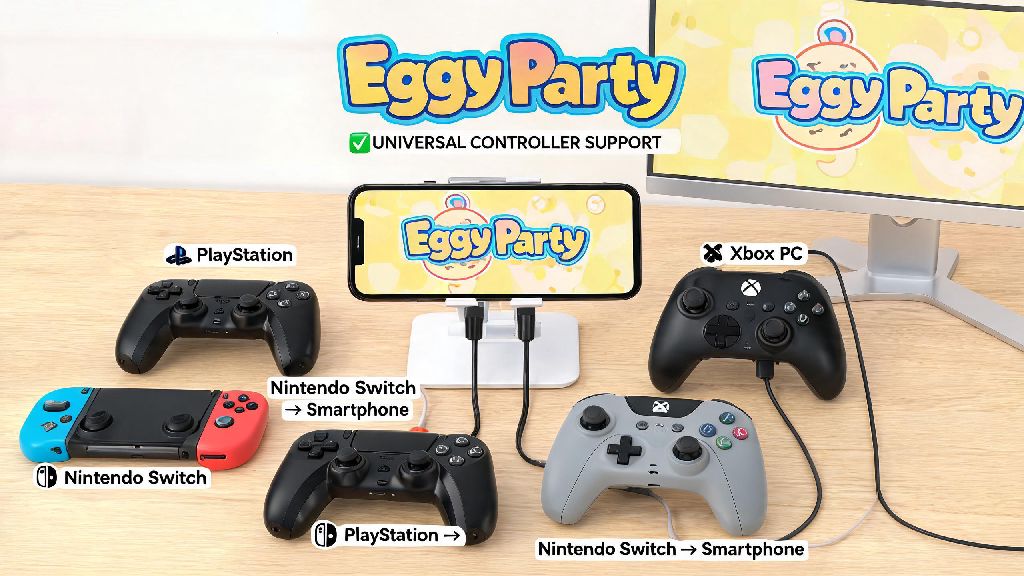
First, you don’t have to buy a special controller made just for Eggy Party to use this feature. Most mainstream console controllers work with the game across most devices, as long as they follow standard input protocols. Officially licensed console controllers work across 90% of supported devices, so if you already have one lying around, you won’t need to buy new hardware.
The full list of supported controllers includes Xbox Series X/S, Xbox One, PS4, PS5, Nintendo Switch Pro, and most 8BitDo third-party controllers. Cheap, unbranded controllers from discount stores often don’t work, as they lack standard HID profiles that the game recognizes. iOS users will only be able to use MFi-certified controllers to access Eggy Party controller support, so double check your device’s certification before trying to connect.
Support also varies slightly between mobile and PC. Android devices have far broader compatibility, as they don’t have the same MFi requirements as Apple products. If you play on PC via the official Eggy Party launcher, almost all wired controllers will work right out of the box, no extra software required.
Step-by-Step Setup for Eggy Party Controller Support Across Devices
The setup process is mostly the same across all devices, with only small tweaks for specific operating systems. Before you start, follow these universal pre-setup checks to avoid common headaches:
For Android users, once you pair your controller via Bluetooth, the game will usually recognize it immediately. If the button mapping feels off, you can adjust each input manually in the controls settings to match your preferred layout. You don’t need to download any third-party apps to use official controllers with Eggy Party, so avoid any software that asks for access to your game account to unlock controller support, as these are almost always scams.
iOS users will need to make sure their device is running iOS 16 or higher to get full button mapping support. If you’re on an older iOS version, you might only get basic joystick support, with no access to action buttons or menu navigation. PC users can use either wired or Bluetooth connections, but wired connections tend to have far less input lag for competitive play.
Common Eggy Party Controller Support Issues and Quick Fixes
Even if you follow the setup steps perfectly, you might run into small issues from time to time. The most common problem people report is their controller being paired to their device, but not registering any inputs in-game. If your controller is connected but not registering in-game, close Eggy Party completely before re-connecting your controller, as the game often doesn’t detect controllers that are paired after the app is launched. I’ve run into this exact problem dozens of times when I paired my PS5 controller after opening the game, and closing the app completely always fixes it for me.
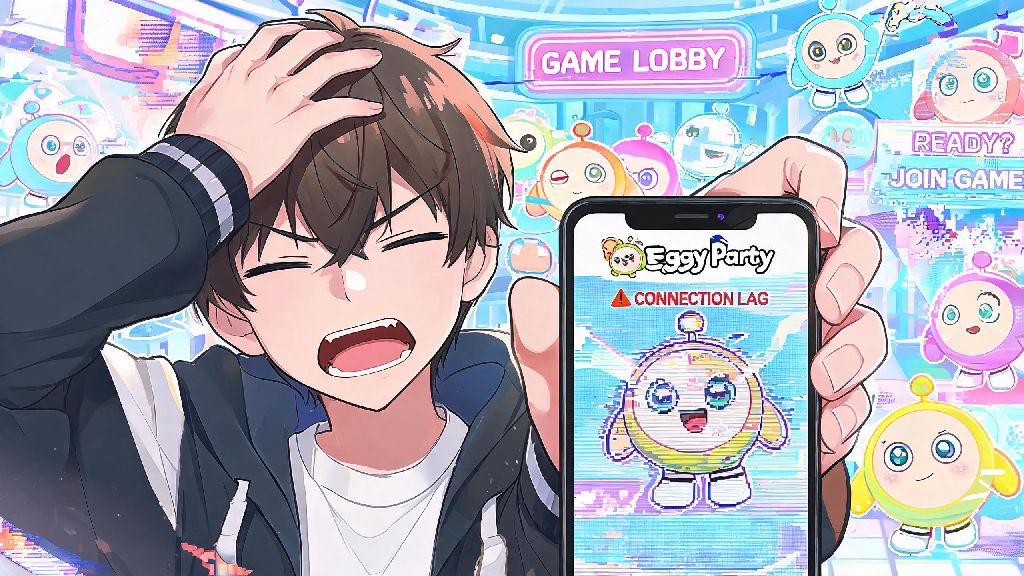
Input lag is another common complaint, especially for players using Bluetooth connections. If you notice a delay between pressing a button and your egg responding, try switching to a wired connection, or moving your controller closer to your device to reduce Bluetooth interference. You can also lower your in-game graphics settings slightly to reduce overall device load, which often cuts down on input lag too.
If you notice touch controls popping up on your screen even when your controller is connected, you can turn off touch control overlays in the settings menu under the controls tab. Note that some custom Eggy Workshop maps disable controller support intentionally to keep competition fair, so if your controller stops working only on specific maps, that’s not a bug, it’s a choice by the map creator.
Is Using Controller Support for Eggy Party Worth It for Competitive Play?
This is one of the most common questions I get from players who are considering switching from touch controls. The short answer is yes, for most playstyles, a controller will give you a slight edge, especially in platforming-focused game modes. I used to struggle with the final jump on the Rainbows & Obstacles map until I switched to a controller, and now I clear that section 80% of the time without breaking a sweat.
Controllers offer far more precise movement than touch controls, which makes navigating tricky obstacle courses much easier. They also reduce hand cramp during long play sessions, so you can grind ranked matches for hours without discomfort. Controller support is allowed in all casual and most ranked Eggy Party modes, so you won’t get banned for using a controller unless you’re using it with macro software to automate inputs.
That said, there are a few cases where touch controls are still better. For fast-paced minigames that require rapid tapping, like the egg tapping race or balloon popping challenges, many players find touch controls are faster than pressing controller buttons. You can always switch between input methods depending on the game mode you’re playing, so you don’t have to stick to one permanently.
At the end of the day, Eggy Party controller support is a fantastic option for players who want a more comfortable, precise way to play without the limitations of touch inputs. Whether you're playing casual rounds with friends or grinding ranked matches to get to the top of the leaderboards, taking the time to set up your controller correctly will make your play sessions far more enjoyable. If you run into issues that aren't covered here, the official game community forums are a great place to find fixes for less common controller models. Don't be afraid to tweak your button mappings to fit your playstyle, either – small adjustments can make a huge difference in how well you perform in matches.