If you’ve ever downloaded Eggy Party from a third-party app store or joined a cross-region server to play with friends overseas, you’ve probably run into menus, event descriptions, and chat messages in a language you don’t understand. Getting your Eggy Party Language Settings set correctly is the first critical step to making the most of every match, event, and custom map you play. I wasted almost 15 minutes tapping through unlabeled icons when I first installed the game a few years back, so I put together this guide to help you avoid that frustration, fix common bugs, and get playing faster.
Pre-Checks Before Modifying Eggy Party Language Settings
Before you dive into the settings menu, there are a few quick checks you should run to make sure your changes stick, and you don’t lose any progress in the process. First, confirm that your game is updated to the latest official version — older builds often only support 2 to 3 language options, while the most recent update supports over 12 languages for global players. Never modify settings on an unlinked guest account, as all your preferences (including language, skins, and saved workshop maps) will be erased if you accidentally log out or clear your app cache. You should also note that some region-exclusive seasonal events will only display in their original language, even after you adjust your settings, so don’t panic if you see a pop-up in a different language during limited-time events. Always link your account to a phone number or social media before modifying any core game settings to avoid losing months of progress over a simple tweak.
Step-by-Step Guide to Adjust Eggy Party Language Settings
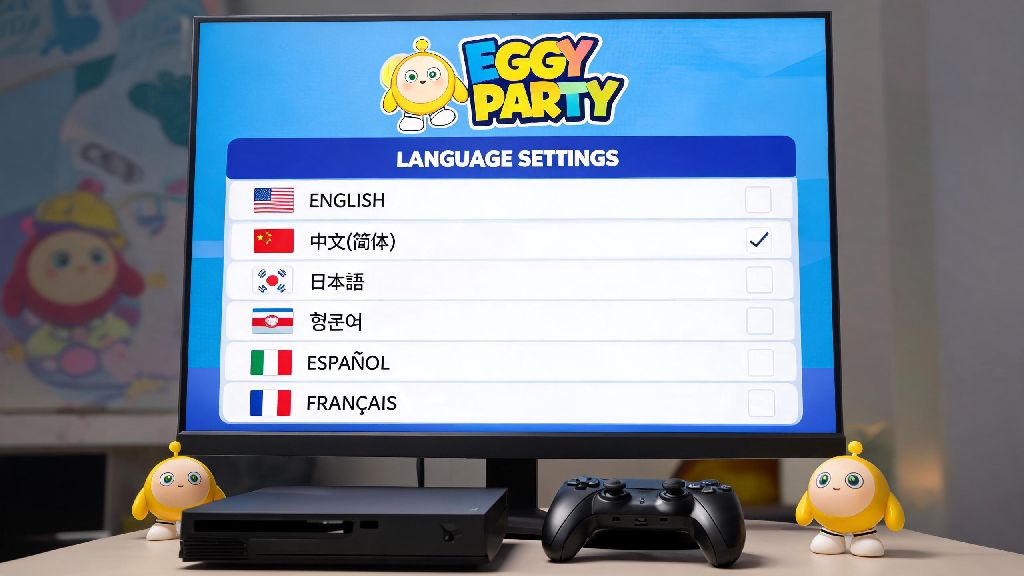
The process is almost identical across iOS, Android, and PC versions of the game, so you can follow these steps no matter what device you play on. First, open the game and wait for the main home screen to load fully, so you don’t tap into the wrong menu during the loading sequence. Tap the gear-shaped settings icon in the top right corner of the screen, then scroll down until you see the “Language” tab in the left-hand menu. From there, you can select your preferred language from the dropdown list, confirm your choice, and wait 10 to 15 seconds for the game to restart and apply the changes. You don’t need to restart your device to apply the language change — the game will reload on its own, and all menus, chat filters, and event descriptions will be updated to your selected language once it boots back up. There are a few small missteps to avoid during this process to save yourself extra work:
Common Language Setting Glitches and How to Fix Them
Even if you follow all the steps correctly, you may run into small glitches that prevent your language settings from working as intended. The most common issue is chat messages from players in other regions still showing up in their original language, even after you turn on the in-game translation tool. This usually happens because the built-in translation feature only supports text sent after you adjust your settings, so old messages won’t be translated retroactively. If you want to translate old chat logs or event notices that the in-game tool misses, you can use third-party game translation tools to scan your screen and translate text in real time. Many casual players I know use Ever777 for quick, ad-free translations when they’re trying to read limited-time event rules that haven’t been localized for their region yet. Always close any third-party translation tools before entering ranked matches, as some anti-cheat systems may flag them as unauthorized software if they run in the background while you play. Another common glitch is your language resetting to default every time you open the game, which is almost always caused by corrupted app cache — clearing your game cache and re-applying the setting will fix this 90% of the time. If the issue persists, you can reach out to support for help troubleshooting device-specific conflicts.
How Adjusting Your Eggy Party Language Settings Improves Your Gameplay
A lot of new players brush off changing their language settings as a minor quality-of-life tweak, but it actually makes a huge difference in how much you get out of the game. First, you’ll be able to read all event rules and reward requirements clearly, so you don’t waste time completing tasks that don’t give you the skins or in-game currency you’re chasing. You’ll also be able to communicate with teammates in ranked matches far more effectively, since the quick chat options and text translation will work correctly once your settings are adjusted. If you like creating or playing custom maps in the Eggy Workshop, setting your language to match the most common language for workshop creators will help you find new, popular maps that wouldn’t show up in your search results otherwise. Setting your language to match your region also lets you join local community events and contests that you wouldn’t know about otherwise, with prize pools exclusive to players in your area. You’ll also get more relevant search results when you look for tips or tutorials related to the game, since your account preferences will align with content creators in your region.
Taking a couple of minutes to set up your Eggy Party Language Settings correctly saves you hours of frustration down the line, whether you’re playing casual matches with friends, grinding ranked tiers, or exploring custom workshop maps. If you run into a glitch that isn’t covered in this guide, you can reach out to the official Eggy Party support team through the in-game help center, and they’ll walk you through more advanced troubleshooting steps for your specific device and region. Once your settings are sorted, you can jump right into matches without having to guess what menus or event notices say, and get the most out of every minute you spend playing the game.