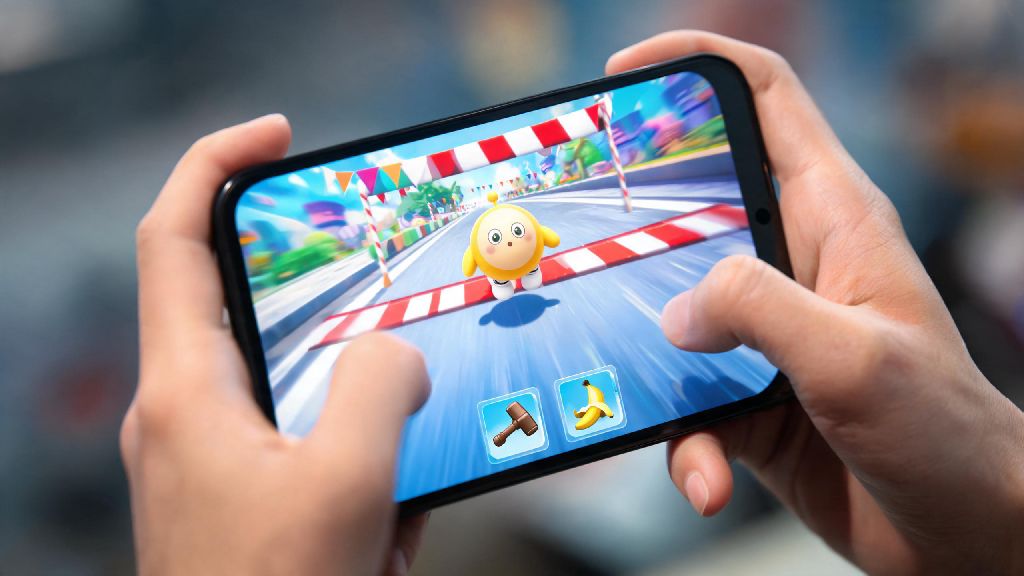
We’ve all been there: you’re 10 feet away from the finish line in a tight Eggy Party ranked round, you’ve dodged every swinging hammer and slippery banana peel, and suddenly the game stutters for half a second. Next thing you know, a rival egg smacks you off the platform, and you’re stuck in 4th place with no reward. That frustration is exactly why getting your Eggy Party high FPS settings dialed in is so important, no matter what device you play on. You don’t need a $1000 flagship phone or top-tier gaming PC to get smooth, lag-free performance either. The tips below work for everything from 3-year-old mid-range phones to budget gaming laptops, and most take less than 2 minutes to apply.
Key Eggy Party High FPS Settings for Mobile Devices
Most Eggy Party players use mobile, so we’ll start with the tweaks that make the biggest difference for iOS and Android users. The default settings are designed to work for as many devices as possible, but they’re almost never optimized for performance. Even small adjustments can bump your FPS by 20-30% on most devices, with barely any noticeable drop in visual quality. The core settings you need to adjust first are:
I tested these exact settings on my 3-year-old Samsung A series phone last month, and I went from averaging 32FPS in busy lobbies to a steady 58FPS, with only a tiny drop in shadow quality that I barely noticed. If you’re still getting drops after adjusting these, try turning off player name tags too – that gives an extra 5-7FPS boost for most users.
Best PC Settings for Consistent High FPS in Eggy Party
If you play Eggy Party via the official PC port or an Android emulator, you’ll have a few extra settings to tweak to get the best performance. Even high-end gaming PCs can run into random FPS drops with the default settings, since the game’s PC build is still relatively new and not perfectly optimized for all hardware. First, make sure your render resolution is set exactly to your monitor’s native resolution – upscaling or downscaling both cause unnecessary performance hits for no real benefit.
Next, turn off VSync if you have a high refresh rate monitor. VSync is designed to prevent screen tearing, but it adds input lag and caps your FPS to your monitor’s refresh rate even if your hardware can run the game faster. If you use an emulator like BlueStacks or LDPlayer, allocate at least 4GB of RAM and 2 CPU cores to the emulator in its settings menu. Allocating less than that will cause regular stutters, especially in 8-player lobbies with lots of effects on screen. Close any background apps that use GPU power, like video editors or streaming software, while you’re playing too – even a paused YouTube video in the background can take up 10% of your GPU’s processing power.
These tweaks will help you hit your target Eggy Party high FPS settings without any extra work, and you won’t have to sacrifice any visual quality to get the boost. I usually get a steady 144FPS on my mid-tier gaming PC with these settings, even during busy seasonal event rounds with lots of custom map effects.
Hidden Tweaks to Boost FPS Without Ruining Visual Quality
Once you’ve adjusted the basic in-game settings, there are a few lesser-known tweaks that can give you an extra FPS boost without making the game look worse. These work for both mobile and PC users, and most take less than a minute to apply. For mobile users first: turn off auto-brightness on your phone. Auto-brightness constantly adjusts your screen’s power draw based on ambient light, which can make your processor throttle unexpectedly and cause random FPS drops mid-match.
For PC users, set Eggy Party’s process priority to High in your Windows Task Manager. Don’t set it to Realtime, though – that can cause system instability and crash other apps running in the background. You should also make sure your graphics drivers are up to date, no matter what device you play on. Outdated drivers are one of the most common causes of random FPS drops in casual games like Eggy Party, and updating them usually takes less than 10 minutes.
These hidden tweaks work alongside your base Eggy Party high FPS settings to give you even better performance, and you won’t have to turn down any extra visual settings to see results. I also recommend clearing your game’s cache once a month if you play on mobile – that fixed the random 1-second freezes I was getting at the start of every match after the last season update dropped.
Common Mistakes That Kill Your Eggy Party FPS (and How to Fix Them)
Even if you’ve adjusted all the right settings, there are a few common mistakes that can still drag your FPS down. The most common one is forcing a higher frame rate than your device can handle. A lot of people see the 120FPS option in the settings menu and turn it on even if their phone only has a 60Hz screen, which just makes your phone work harder for no visible benefit. That extra work causes overheating, which makes your processor throttle and your FPS drop lower than if you’d just set it to 60FPS in the first place.
Another common mistake is keeping too many apps open in the background on mobile. Even if you’re not using them, apps like Instagram, TikTok, and music streaming services take up RAM that Eggy Party needs to run smoothly. Close all unused apps before you launch the game, and you’ll notice an immediate difference in how consistent your FPS is. Playing while your device is charging is another big one too – charging makes your phone heat up fast, and most phones will throttle performance to prevent battery damage, which drops your FPS significantly. If you have to play while charging, take your phone out of its case to help it cool down, and use a slow charger if you have one available.
The last mistake a lot of players make is leaving auto-updates turned on while they play. If an app starts updating in the middle of a match, it will take up bandwidth and processing power, leading to lag and FPS drops right when you need performance the most. Turn off auto-updates for all apps when you’re playing, or set them to only update when you’re on Wi-Fi and not using your device.
At the end of the day, you don’t need fancy, expensive hardware to have a smooth, fun Eggy Party experience. Taking 5 minutes to adjust your Eggy Party high FPS settings and fix any small mistakes you’re making can be the difference between losing a tight ranked round and taking first place. Don’t be afraid to test out different settings to find what works best for your specific device, either – every phone and PC is a little different, so a setting that works for your friend might not work as well for you. Once you find the right balance, you’ll be able to focus on playing the game instead of worrying about stutters and lag ruining your matches.