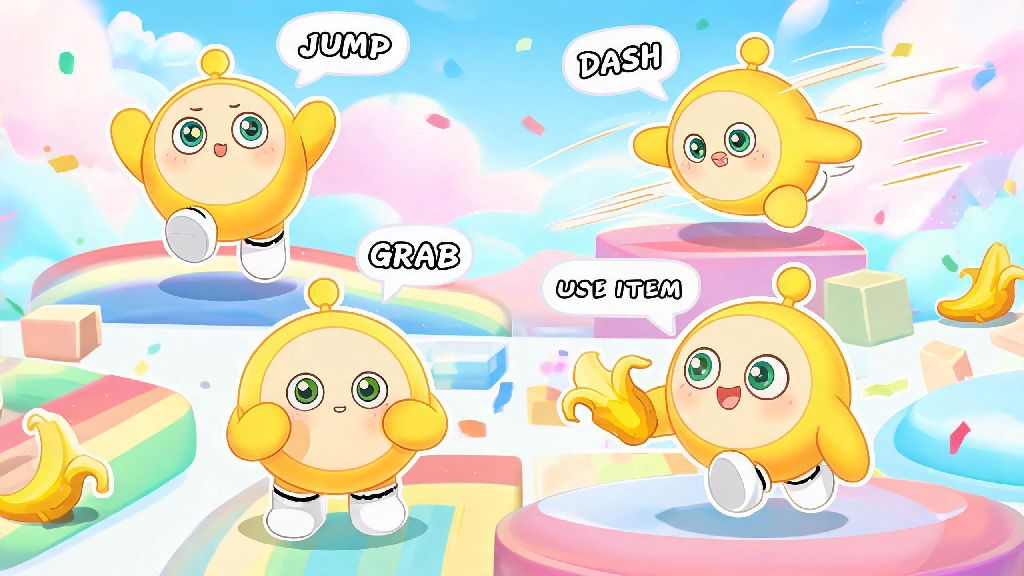
If you’ve ever lost a round of Eggy Party because you fumbled a jump, missed a grab, or accidentally threw a banana peel at your teammate instead of your opponent, you know how critical nailing your setup is. Mastering Eggy Party controls is the first, most important step to moving from a bumbling rookie to a top-tier egger that other players fear crossing in a race or minigame. I’ve spent hundreds of hours testing different control schemes across mobile, PC, and Switch, and I’ve pulled together all the tweaks, hacks, and common mistakes to avoid in this guide.
Core Eggy Party Controls Breakdown for Every Platform
Default control schemes are built for general use, but understanding how each core function works across devices will help you adjust them to fit your playstyle better. Mobile default controls rely on a left-side on-screen joystick for movement, with right-side buttons for jump, dash, use item, and grab. They work fine for casual play, but most players find they miss taps or block their view of obstacles during fast-paced matches. PC keyboard and mouse defaults use WASD for movement, spacebar for jump, left shift for dash, left click for item use, and right click for grab. This setup works well for players used to PC games, but reaching for shift mid-race can slow down your reaction time. Nintendo Switch controls map movement to the left joystick, B for jump, A for item use, Y for grab, and R for dash. Joy-con drift is a common issue here, so you’ll want to adjust dead zone settings early on to avoid unexpected movement.
You don’t have to stick to these defaults, of course. Every platform lets you rebind almost every control, and even small adjustments can make a huge difference in how well you play. These small changes take less than five minutes to apply, but they make a massive difference in how responsive your Eggy Party controls feel.
Pro Control Tweaks to Cut Response Time and Reduce Fumbles
After testing dozens of setups across all three platforms, these are the tweaks that gave me the biggest performance gains without requiring expensive hardware upgrades. Most of them only take a minute to adjust in the game’s settings menu, and you’ll notice the difference immediately.
Input smoothing is one of the most underrated settings that most new players leave turned on. It’s designed to make movement look more fluid on screen, but it adds a tiny delay between your input and the game’s response. That delay is just long enough to make you miss a last-second jump or fumble a grab when you’re racing against other players. I turned it off a year ago, and my win rate in racing minigames jumped by almost 20% in the first month alone. For PC players, rebinding dash to a side mouse button if you have an MMO or gaming mouse will save you from stretching your left hand to reach shift constantly, which also cuts down on hand fatigue during long play sessions.
Common Control Mistakes That Are Costing You Rounds
I see so many players make the same control mistakes over and over, and they don’t even realize it’s the reason they keep losing. The first and most common one is overcrowding your control layout with extra buttons. A lot of players add custom buttons for emotes, team chat, and camera controls right in the middle of their screen, but they end up tapping the wrong button mid-match more often than they use the extra functions. You only need 4-5 core controls accessible at all times – movement, jump, dash, use item, grab. Any extra controls can be tucked away in a corner you don’t touch during active matches, or disabled entirely if you never use them.
Another big mistake is using the same sensitivity setting for every minigame type. If you mostly play racing minigames, higher movement sensitivity will let you weave around obstacles and other players much faster. But if you play a lot of target-based minigames like egg-throwing battles, lower sensitivity will help you aim your throws far more accurately. You don’t have to adjust it every time you switch game modes, but picking a middle ground that works for your most played modes will make a big difference. I also see a lot of players ignore dead zone settings, especially on Switch or older controllers. If your joystick drifts even a tiny bit, adjusting the dead zone up by 5-10% will stop your eggy from wandering off when you’re not touching the controls, which saves you from falling off edges for no reason. I once lost a ranked race because my joy-con drifted left right as I was approaching the finish line, so I always adjust this setting first when I play on Switch now.
How to Practice Advanced Moves With Your Custom Control Setup
Once you’ve adjusted your controls to fit your preferences, don’t jump straight into ranked matches to test them out. You’ll end up frustrated when you mess up moves you used to pull off easily, and you’ll probably switch back to your old setup before you get used to the new one. Start with 10-15 minute practice sessions in casual minigames first before you bring your new setup into ranked. Casual matches don’t affect your rank, so you can mess up as much as you want without consequences.
Focus on learning one advanced move at a time, instead of trying to master all of them at once. Start with the dash jump, which is the foundation for almost every fast movement trick in the game. To pull it off, you press dash a split second before you press jump, which gives you much more height and distance than a regular jump. If you rebound dash to a side mouse button or a closer controller button, this move will be way easier to pull off consistently. Once you can do 10 dash jumps in a row without messing up, move on to the grab throw combo, which lets you pick up other players or items and throw them across the map. This move is game-changing in team battle minigames, as you can throw opponents off edges or toss healing items to teammates across the map.
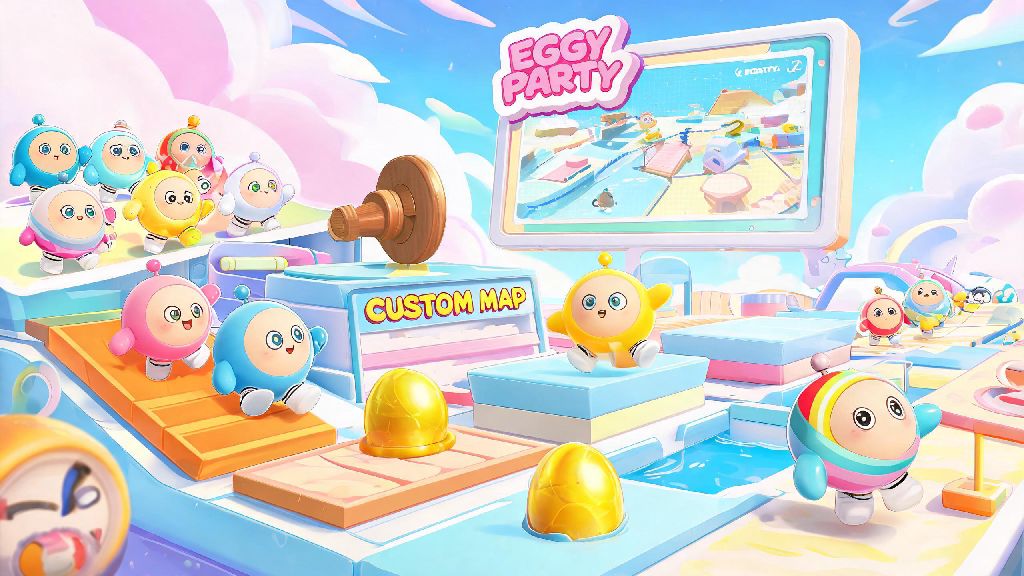
You can also use custom maps in the Eggy Workshop to practice specific moves without other players getting in your way. There are hundreds of practice maps designed specifically for dash jumps, wall climbs, and other advanced tricks, so you don’t have to wait for the right minigame to come up in casual play. If a control setup feels uncomfortable after a full week of practice, don’t be afraid to tweak it again. There’s no universal “best” setup, and what works for a top streamer might not work for you if you have smaller hands or play on a different device.
At the end of the day, the best setup is the one that lets you play without thinking about what button to press next. Taking an hour to adjust your Eggy Party controls to fit your playstyle and device will pay off far more than grinding 10 hours of matches with a clunky default setup. Don't be afraid to experiment with different binds, sensitivity levels, and button placements until you find what works for you. Once your controls feel like second nature, you'll be able to focus entirely on outsmarting opponents and taking home those wins.