If you’ve logged into Eggy Party in 2026, you’ve probably noticed the new rolling obstacle maps and 16-player competitive race modes that make the game feel more dynamic than ever. Most players spend hours testing new skins or practicing jump tricks, but far too few stop to adjust one of the most impactful parts of their setup: Eggy Party camera settings. Even small tweaks can cut down on blind spots, help you avoid surprise traps, and make it way easier to capture that viral 360 no-clip win you’ve been trying to get for weeks. I’ve tested over 20 different setups across mobile, PC, and console over the past three months to find the settings that work for every play style, no matter if you only play casual minigames or grind ranked every weekend.
Core Eggy Party Camera Settings to Adjust First for 2026 Game Modes
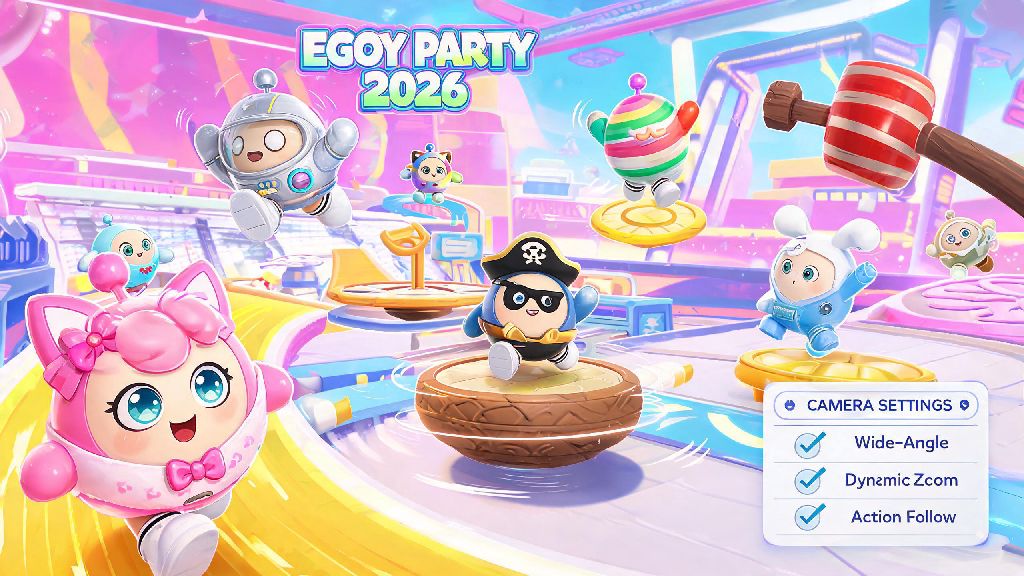
First off, you don’t need to mess with every single slider in the settings menu to get better performance. There are four core settings that make 90% of the difference, and I’ve tested them across all the new 2026 maps to make sure they work for both race and puzzle modes. Camera Distance is the first one to adjust. I recommend setting it to 75 out of 100 for most players. If you set it too high, your egg looks tiny on screen and you’ll miss small traps right at your feet, but set it too low and you won’t see obstacles coming from the side or behind you. These core Eggy Party camera settings work for 90% of players right out of the gate, so you don’t need to mess with the other sliders unless you have a specific use case.
Next up is Camera Height, which most new players leave at the default 50. Bumping this up to 65 gives you a much better view of the path ahead without making it hard to judge jump distances. I used to keep mine at 40 because I thought it made jumps easier, but once I switched to 65 I stopped missing those floating platform jumps on the new Cloud Race map 90% of the time. The third core setting is Camera Follow Speed, which controls how fast the camera moves to keep up with your egg when you change direction.
For this one, set it to 60 if you play casual modes, or 80 if you play competitive ranked. If you play a lot of the new 2026 obstacle courses with tight turns, a higher follow speed means you won’t be staring at the side of your egg for half a second after you turn a corner. The last core setting is First-Person Toggle, which you should definitely keep enabled. It only takes one tap to switch, and it’s a lifesaver when you’re stuck in a crowded group of eggs at the start of a race, or when you’re trying to line up a precise throw in team minigames.
Device-Specific Adjustments for Mobile, PC and Console Players
One of the biggest mistakes players make is copying settings from pro players without adjusting for the device they play on. A setup that works for a PC player with a 4K monitor will be totally useless for someone playing on a 6-inch mobile phone, so you’ll need to tweak the core settings we covered earlier to fit your device. I’ve broken down the most important tweaks for each platform below:
Also, if you stream or record a lot of Eggy Party clips for TikTok or YouTube Shorts, you can find pre-tweaked clip-focused profiles from top 2026 creators on the official Eggy Party community settings hub. I tested a few of the most popular ones, and they’re great if you want to balance good gameplay visibility with clip quality that looks good on social media. You can also share your own favorite Eggy Party camera settings on the community hub to help other players find the right setup for them. Just don’t use a clip-focused profile if you’re grinding ranked, as they often prioritize wide shots over the tight visibility you need to avoid last-second traps.
Camera Settings for Specific 2026 Eggy Party Game Modes
The 2026 Eggy Party update added 8 new game modes, and some of them work way better with small adjustments to your default camera setup. You don’t need to change your settings every single time you switch modes, but it only takes 10 seconds to tweak one or two sliders if you’re planning to play one mode for an hour or more. For example, if you’re playing the new Team Obstacle Race mode, you’ll want to bump your camera distance up by 5 points so you can see where your teammates are, and make sure they’re not getting stuck behind obstacles you can help them clear. If you want to switch between profiles quickly, you can assign your favorite Eggy Party camera settings to a quick menu shortcut in the 2026 update’s control settings.
If you’re playing Puzzle Escape mode, drop your camera distance down to 65 and turn off first-person toggle entirely. This mode has a lot of small, hidden clues on the ground right next to your egg, so a closer camera will help you spot them faster without panning around constantly. I used to struggle to beat the new Haunted Mansion escape map until I adjusted this, and my clear time dropped from 12 minutes to just over 4 minutes on my first try with the closer setup.
For ranked competitive modes, stick to your default core settings, but make sure dynamic camera zoom is turned off. This feature zooms the camera in and out automatically during races, and it can throw off your jump timing right when you need it most. A lot of players have this feature enabled by default after the 2026 update, so double check it’s turned off before you queue for your next ranked match. It’s the number one mistake I see new ranked players making that costs them placements.
Common Eggy Party Camera Settings Mistakes to Avoid in 2026
Even if you set all your sliders correctly, there are a few common mistakes that can make your camera feel unresponsive or hard to use. The first one is copying pro player settings exactly without testing them first. A lot of top 2026 competitive players use custom controllers or modified input setups that make their camera settings work for them, but they might feel terrible for you if you use standard touch or controller inputs. Always test a new setup for at least 3 casual matches before you use it for ranked or clip recording.
Another mistake is turning camera shake all the way up to 100. It might feel more fun at first, but it makes it way harder to spot small traps, and your clips will look so shaky that no one will want to watch them. I’ve seen a lot of new players do this because they think it makes the game feel more exciting, but most of them switch it back down after a week of missing easy jumps. Also, don’t forget to save your settings as a custom profile once you find a setup you like. The 2026 update lets you save up to 3 custom profiles, so you can have one for casual play, one for ranked, and one for clip recording without having to adjust sliders every time.
The last mistake to avoid is ignoring the camera sensitivity setting if you use a controller or mouse. Even with the perfect distance and height settings, if your sensitivity is too high, you’ll pan past obstacles you’re trying to look at, and if it’s too low, you won’t be able to turn fast enough to avoid surprise attacks in team modes. I recommend starting with 50 sensitivity for controllers and 40 for mouse, then adjusting up or down by 5 points at a time until it feels natural for you.
At the end of the day, the best Eggy Party camera settings are the ones that feel comfortable for you, but starting with the tested baseline we covered here will save you hours of tinkering. Take 10 minutes before your next play session to adjust these sliders, test them out in a few casual matches, and tweak them to fit your play style and device. You’ll be shocked at how much easier it is to avoid traps, win races, and capture great clips once your camera is set up properly for 2026’s new game modes and maps. Don’t be afraid to experiment a little too – you might stumble on a setup that works even better for your favorite modes.